 Sakvora
Connect Bambu Lab printers (A1, A1 mini, P1S, P2S, X1) to see status, time remaining, and filament live, send prints from Sakvora, and have jobs logged automatically with their costs.
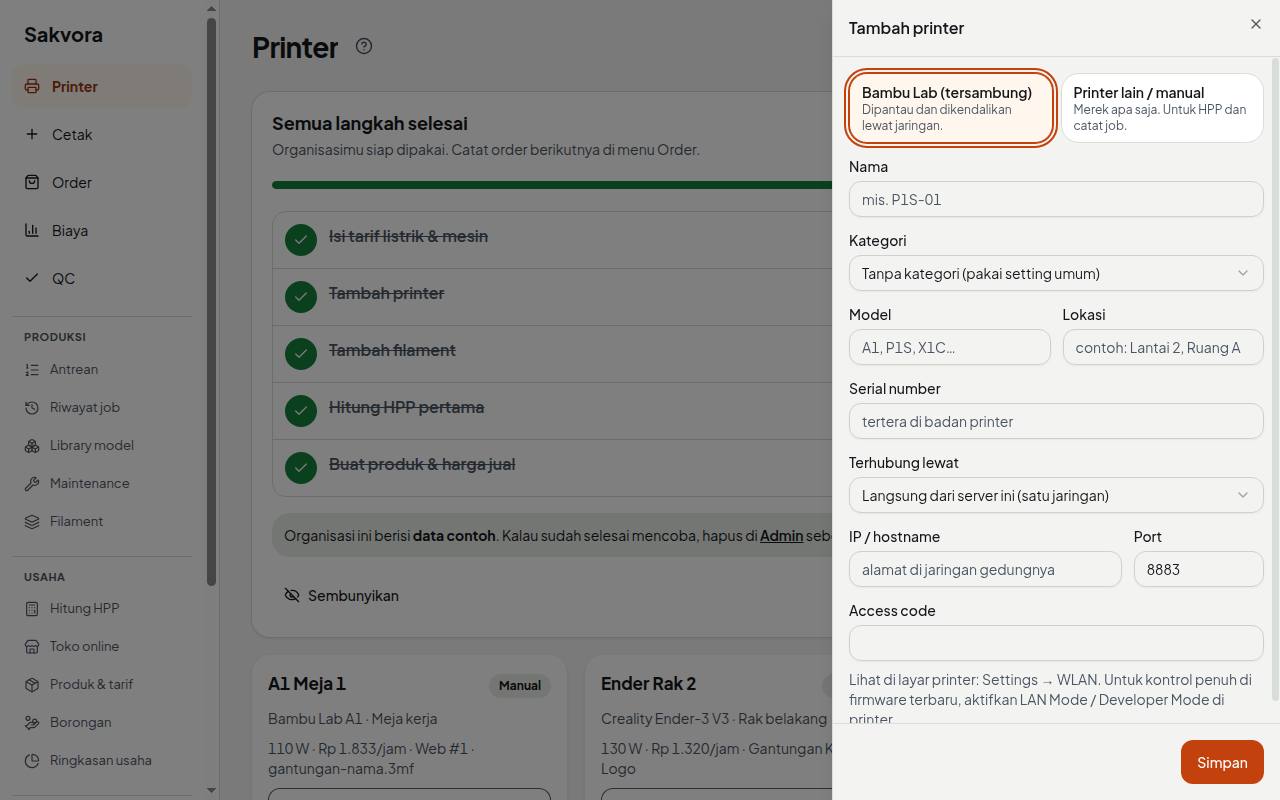
What you need
- The printer and the Sakvora server on the same network (or a site agent for another location).
- The printer's IP address, serial number, and access code, all shown on the printer's screen under Settings → WLAN.
Connect in LAN mode
Menu names on the printer's screen vary slightly by model and firmware version; the steps are the same.
- Enable LAN Mode. On the printer's screen, open Settings → WLAN (or Network) and turn on LAN Only Mode. Note the IP and Access Code shown on the same screen.
- Enable Developer Mode (newer firmware, below LAN Only Mode) if you want to send prints, pause, or stop from Sakvora. Without it, the printer can only be monitored.
- Note the serial number. It is under Settings → Device (Printer SN) or on the label on the back of the printer.
- Add it in Sakvora. On Printers, click Add printer, choose Bambu Lab (connected), and enter the name, model, serial number, IP, and access code. Leave the port at 8883.
- Wait for the status. Within a few seconds the printer card shows Ready or Printing, nozzle and bed temperatures, and the filament in the AMS. If it stays Offline, check the IP (it can change after a router restart, so reserve it in your router), the access code, and that the printer and Sakvora server are on the same network.
- Check the camera by opening the printer card.
If you change the access code on the printer (you can renew it on the same screen), update it in Sakvora too via Edit printer on that printer's page.
LAN mode and limitations
Recent Bambu firmware restricts control from outside Bambu's own apps. What you need to know:
- For full control (sending prints, pause, lights, speed), enable LAN Mode and Developer Mode on the printer. In LAN-only mode, the Bambu Handy app and Bambu cloud can't be used at the same time.
- Without them, the printer can still be monitored (status, progress, filament, failure reasons), but commands are rejected. Sakvora marks such printers read-only.
- Camera: A1 uses still images refreshed periodically; P1S/P2S/X1 use a live stream that sometimes freezes. If it doesn't appear, turn LAN Mode Liveview off and on again, or restart the printer once the current print finishes.
- Multi-color prints follow the AMS slot mapping. Check the colors on the Print page before sending.
.stepfiles can't be read yet; export them to.stlor.3mffirst.
Send a print from Sakvora
In Print (in the app, main menu), choose a file and a printer, set colors and settings (quality, ironing, support, infill), then click Slice. When slicing finishes, the button changes to Send to printer (printer ready) or Add to queue (printer busy).
Before sending, Sakvora asks you to confirm Bed cleared. This stops the printer from printing on top of the previous print. Remove the previous print first, then confirm on the printer card.
Queue
Waiting prints are listed in Queue (in the app, Production). As soon as the printer finishes and the bed is confirmed clear, the next item is sent automatically. Failed jobs appear on the Printers page with the reason (taken from the printer's error code) and can be posted to Discord if set up in Admin.
Continue to Orders and profit.