 Sakvora
Unit cost is what it costs you to print one item: filament, electricity, and machine cost, plus any other costs. In Cost calculator (in the app, Business), just upload a sliced file to see the figures.
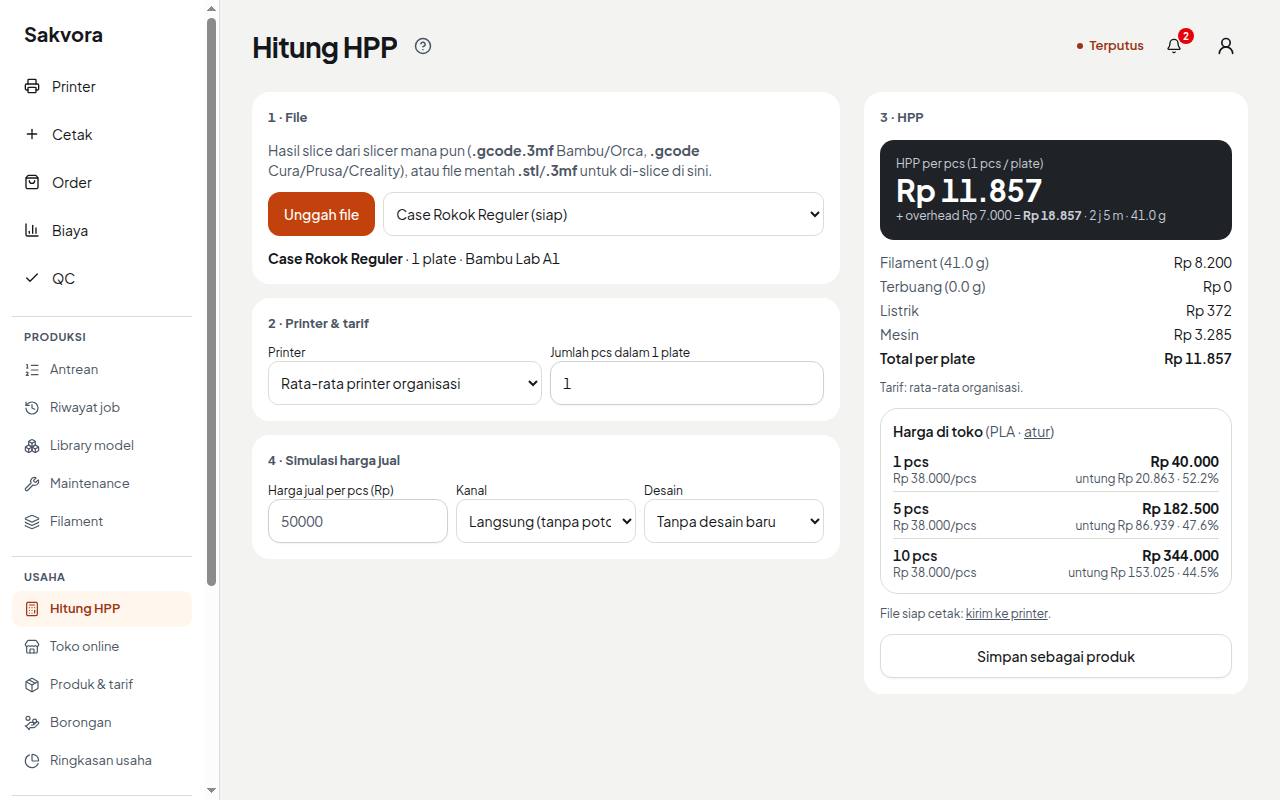
Upload a file
Use a sliced file, since filament weight and print time are read from it:
.gcode.3mffrom Bambu Studio or OrcaSlicer, or.gcodefrom any slicer, including Creality Print, PrusaSlicer, or Cura.
Raw files (.stl, or .3mf without slicing data) can be uploaded to Model library (in the app, Production) and sliced in Sakvora. Every file you upload is kept in the library.
Select a printer
Choose the printer you will use so its power and machine cost are applied. No printer in Sakvora yet? Choose Temporary printer and enter its wattage, machine cost per hour, and filament price per kg.
Read the results
Sakvora shows unit cost per plate and per item (if a plate holds several items, enter how many). The breakdown shows grams of filament, print hours, and the electricity and machine cost in rupiah. If any input is missing, the result is marked incomplete so you don't price on wrong figures.
Estimate a selling price
Enter a selling price per item and choose a sales channel (for example Shopee, with its fees) to see profit or loss. The SaaS edition does not include online shop pricing. Save the result as a product to use it in orders.
Overhead (rent, fixed salaries, internet) is spread across all items that pass QC in a month. Enter it under Rates (in the app, Settings) so estimated unit costs are closer to reality.
Continue to Manual printers and job logging.